

Contents
Samsung Multi Control: Unlocking Seamless Device Integration
What Exactly is Samsung Multi Control?
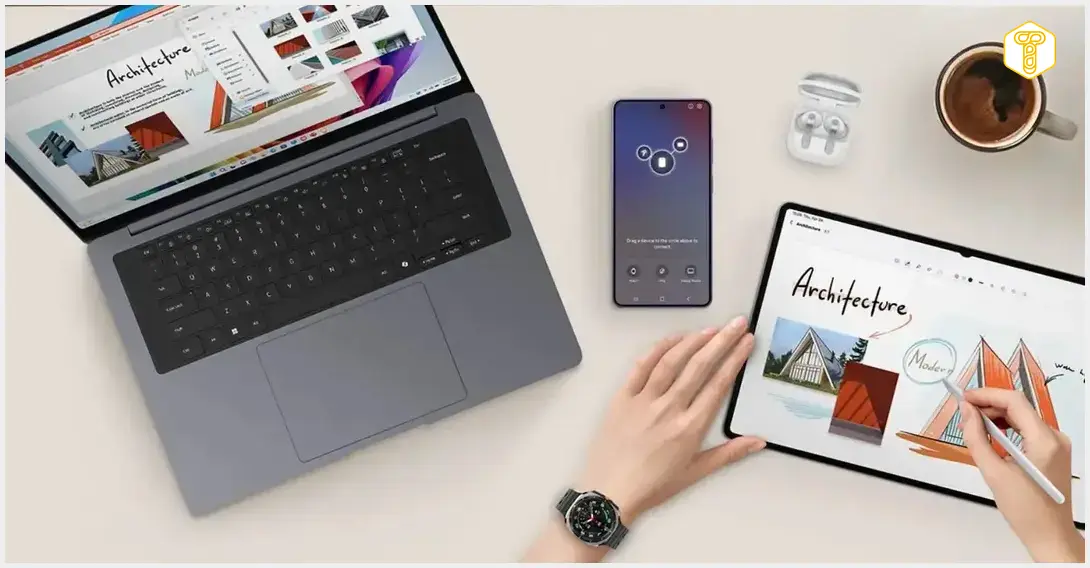
At its core, Samsung Multi Control allows you to operate your Samsung Galaxy phone or tablet running One UI using the same mouse and keyboard connected to your Windows computer. Imagine your mouse cursor gliding effortlessly between your PC screen and your Galaxy device, much like it does between two monitors connected to a single computer. This functionality extends beyond just cursor movement; it enables a unified control experience across different form factors. What makes Multi Control particularly interesting is that it doesn’t aim to replace your computer with a smartphone or vice versa. Samsung already has DeX, a feature designed to offer a desktop-like experience from your phone or tablet. Multi Control serves a different purpose entirely. Your phone remains a phone, your tablet remains a tablet, and your computer functions as a computer. Multi Control simply blurs the lines between these devices, fostering a more cohesive and efficient multi-device workflow.How to Set Up and Use Samsung Multi Control
For a long time, this feature was closely tied to Samsung’s Galaxy Book laptops, making it seem like an exclusive component of Samsung’s closed ecosystem. However, this situation has evolved. According to reports from tech publications, Samsung has broadened Multi Control support to a wider range of Windows computers through the Galaxy Connect application, available in the Microsoft Store. The first step is to download the Multi Control application from the Microsoft Store. Upon launching the program, you’ll likely receive a prompt instructing you to download Galaxy Connect. Simply click the “Install” button or manually search for the application in the store. This application is crucial because, as Samsung states: “With the Galaxy Connect app, you can connect Galaxy phones and tablets to Windows PCs and easily accomplish more tasks.” After installation, Galaxy Connect may require you to install another program: .Net Desktop Runtime. A simple click on “Install” will handle this. It’s important to note the system requirements for Multi Control. You’ll need a computer running Windows 11 with a 64-bit Intel or AMD processor. ARM-based computers are not supported. Additionally, both Wi-Fi and Bluetooth must be active on your computer. Your Galaxy phone or tablet needs to be running One UI 5.1 or a newer version of the operating system. Both devices must be logged into the same Samsung account and connected to the same Wi-Fi network. Crucially, the Multi Control function must be enabled within your One UI settings on the Galaxy device. While Samsung has expanded official support, the tech community had already found ways to enable Multi Control on non-Galaxy Book computers. Instructions and workarounds to bypass Samsung’s initial restrictions can often be found on enthusiast forums like XDA Developers and in various international tech guides.Multi Control in Action: Bridging Your Devices
Once Multi Control is enabled on your Windows 11 PC, available devices should appear. For example, if you have a Galaxy Z Fold 8 Ultra, it should be listed, indicating that your devices are connected and ready to use the feature. Now, simply move your mouse pointer past the edge of your computer monitor, and it will seamlessly appear on the screen of your smartphone or tablet. While screenshots don’t capture the cursor movement, the effect is immediate and intuitive, as if your phone’s screen is an extension of your PC’s display. This seemingly simple capability unlocks much greater potential. Multi Control allows you to type text on your phone using your computer’s full-sized keyboard. Don’t be fooled by the virtual keyboard image you might see; once you select a text field on your smartphone with your mouse, you can effortlessly use your physical computer keyboard for input. Furthermore, copying and pasting content between devices becomes incredibly smooth. For instance, you can copy a file on your computer and then paste it directly into a folder on your One UI device. This can also be achieved by dragging and dropping files, a method I’ve tested and confirmed works seamlessly. After just a few minutes of using it, you’ll likely feel that Samsung has created a truly useful feature for individuals who work across multiple devices. The usage scenarios are varied and depend entirely on individual needs. Will I continue using Multi Control long-term? It’s hard to say definitively at this moment. My only regret is that only my newer Galaxy Z Fold 8 Ultra can connect, while my older, reliable Galaxy Tab S6 unfortunately cannot. If it could, I would certainly be more inclined to use this feature consistently, perhaps even permanently. Admittedly, Multi Control isn’t the most groundbreaking or “flashy” feature within One UI. However, in its unique and understated way, it makes One UI and Windows 11 behave like components of a single, integrated work environment. And that’s precisely why it’s a shame that so few people seem to remember or utilize it. In a world saturated with “loud” new features, Multi Control is one of those functionalities that is definitely worth exploring in both your leisure and professional setups. It’s worth exploring other ways Samsung is integrating its ecosystem, such as enhanced multi-window capabilities and AI-driven cross-device functionality in upcoming One UI versions like One UI 9. You can learn more about these advancements in our article on What’s New in One UI 9: Multi-Window, AI, Cross-Device Features. Furthermore, Samsung is continuously working on improving connectivity and AI features, extending to tools like the Samsung Browser on Windows with AI Connectivity, demonstrating their commitment to a holistic digital experience.Frequently Asked Questions (FAQ)
Frequently Asked Questions (FAQ)
What Samsung devices are compatible with Multi Control?
Samsung Multi Control requires a Galaxy phone or tablet running One UI 5.1 or a newer version of the operating system. Both devices must be logged into the same Samsung account and connected to the same Wi-Fi network.
What are the PC requirements for Samsung Multi Control?
Your PC needs to be running Windows 11 with a 64-bit Intel or AMD processor. ARM-based computers are not supported. You also need active Wi-Fi and Bluetooth, and the Galaxy Connect and Multi Control apps from the Microsoft Store.
Can I drag and drop files between my Windows PC and Galaxy device using Multi Control?
Yes, Samsung Multi Control allows for seamless drag-and-drop functionality between your Windows computer and your connected Galaxy phone or tablet. You can easily transfer files and images by simply dragging them across the screens.
Source: Self-developed content, Sammobile. Opening photo: Samsung / press materials
About Post Author
