

Contents
Master Wireless File Sharing: Quick Share on Android, Windows, and More
Transferring files between your phone and computer doesn’t have to involve the hassle of email attachments or cloud storage. Thanks to Quick Share, you can swiftly and wirelessly exchange photos, videos, and documents across Android, Windows, and ChromeOS devices, and in select cases, even with Apple hardware.
This powerful feature simplifies your digital life, allowing you to move large files with ease and efficiency, often without needing an internet connection.
What is Quick Share? Your Go-To for Seamless File Transfers
Quick Share, previously known as Nearby Share, is an integral tool built directly into the Android operating system, designed to facilitate file sharing with nearby devices. It presents a highly convenient alternative to traditional methods:
- Messaging Apps: Many communication platforms frequently compress photos and videos, reducing their quality during transfer.
- Email: Often imposes restrictive limits on attachment sizes, making it impractical for large files.
Quick Share bypasses these limitations, ensuring your files retain their original quality and can be transferred regardless of size constraints.
How to Use Quick Share on Android Devices
Using Quick Share on your Android device is straightforward:
- Open the File: Navigate to the photo, video, or document you wish to share.
- Select ‘Share’: Tap on the “Share” option, usually represented by an icon with three dots connected or an arrow pointing upwards.
- Choose ‘Quick Share’: From the sharing options, select “Quick Share.”
- Device Discovery: Your phone will automatically search for nearby compatible devices.
- Select Recipient: Once the recipient’s device appears, tap on it.
- Accept Transfer: The recipient will receive a prompt to accept the incoming transfer. Once accepted, the file will be sent directly to their device.
Quick Share intelligently utilizes Bluetooth for discovering nearby devices and then switches to Wi-Fi for the actual data transfer. This dual-technology approach ensures that even large files can be moved quickly and efficiently without the need to upload them to cloud storage. Crucially, transfers between nearby devices typically do not require an active internet connection.
For quick access, you can also launch Quick Share directly from your Android device’s quick settings panel. If the button isn’t immediately visible, you can usually add it by editing the panel’s layout.
Expanding Your Reach: Quick Share with Windows, Chromebooks, and Apple Devices
Quick Share for Windows and Chromebooks
Quick Share extends its functionality to Chromebooks and computers running Windows. For Windows users, it’s essential to install the dedicated Google Quick Share application. For certain Samsung computers, a specific version may be available directly through the Microsoft Store, streamlining the installation process.
Bridging the Gap: Quick Share and AirDrop Integration
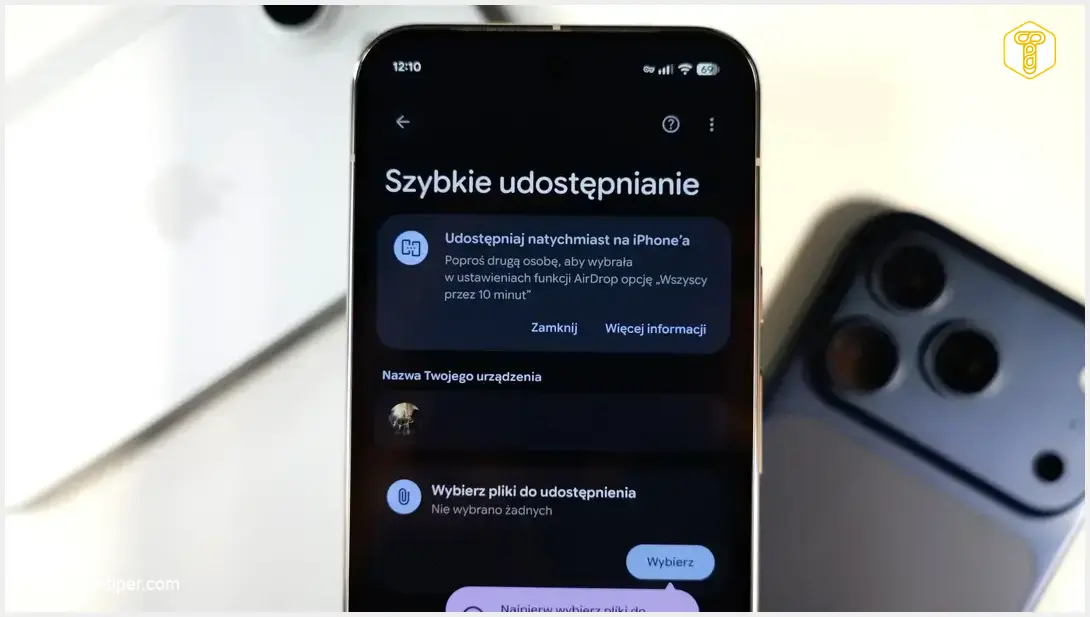
Remarkably, Quick Share also facilitates direct file transfers to Apple devices via AirDrop on selected smartphones. This integration is available on a growing list of premium devices, including models from the Google Pixel series (e.g., Pixel 9 and 10), Samsung Galaxy S series (e.g., Galaxy S25 and S26), and OnePlus (e.g., OnePlus 15).

To leverage this feature, an iPhone, iPad, or Mac user needs to enable AirDrop visibility to “Everyone” for 10 minutes within their device settings. Following this, you simply select their Apple device from your Quick Share list, and they can accept the transfer. For more details on supported Samsung devices, you can explore leaked lists of supported smartphones or learn how to enable Apple Quick Share on Samsung Galaxy.
QR Code Sharing for Unsupported Devices
If your smartphone doesn’t support direct AirDrop integration with Quick Share, there’s still a convenient workaround: QR code sharing. In this scenario, your device generates a unique QR code. The recipient can then scan this code with their smartphone or tablet, which directs them to a web page where they can download the shared files via their browser. It’s important to note that this particular method does require an active internet connection for the recipient to access and download the files.
Compatibility and Requirements
Quick Share is broadly accessible on devices running Android 6.0 or newer. A significant advantage is that it does not require the installation of any additional application on your Android phone, as it’s a native system feature. However, the specific availability of certain transfer methods, especially advanced integrations like direct AirDrop compatibility, can depend on your device model and its current software version.
Frequently Asked Questions (FAQ)
Quick Share offers several advantages, including preserving the original quality of photos and videos (unlike many messaging apps), bypassing email attachment size limits, and enabling fast, direct transfers between nearby devices without needing an internet connection for the core functionality. It streamlines the sharing process significantly.
No, Quick Share primarily uses Bluetooth for device discovery and Wi-Fi for direct data transfer between nearby devices. This means that for transfers between devices in close proximity, an active internet connection is typically not required. However, the QR code sharing method, used when direct integration isn’t available, does require an internet connection for the recipient to download files via a browser.
Yes, even if your smartphone doesn’t support direct AirDrop integration with Quick Share, you can still share files with Apple devices (or any device with a web browser) using the QR code method. Quick Share generates a unique QR code, which the recipient scans to download files through their web browser. This method does require an internet connection.
Quick Share is available on devices running Android 6.0 or newer. It is a built-in feature of the Android operating system, so you do not need to install any additional application on your phone to use its core functionalities.
Source: Android Police. Opening photo: Krzysztof Wilamowski.
About Post Author
