

Contents
Relive Android’s Past: A Browser-Based Emulator Takes You Back in Time
Imagine stepping back more than a decade with just your web browser. A fascinating new project allows you to do exactly that, offering a browser-based Android emulator that brings vintage Android operating systems to life on your modern smartphone screen. This interactive tool isn’t just a static display; it lets you dive deep into past applications and explore system settings, rekindling memories of Android’s early days.
The Android Time Machine Project: Witnessing Evolution
Developed by szabolevi98, the “Android Time Machine” project offers a unique opportunity to witness the significant transformations Android has undergone over the years. While today’s Android, such as the current stable Android 14 (and future iterations like those anticipated for Android 17), boasts a refined interface and the expressive Material 3 design language, this emulator lets you experience the humble beginnings.
A Journey Through Android History: Available Versions
This innovative tool runs various legacy Android editions directly within your browser window. You can choose from eight distinct releases, spanning a significant period of Android’s development:
- Android 2.1 Eclair on the Nexus One
- Android 2.3.6 Gingerbread
- Android 4.0.4 Ice Cream Sandwich
- Android 4.3 Jelly Bean
- Android 4.4.4 KitKat
- Android 5.1.1 Lollipop
- Android 6.0.1 Marshmallow
- Android 7.1.2 Nougat on the Nexus 6P
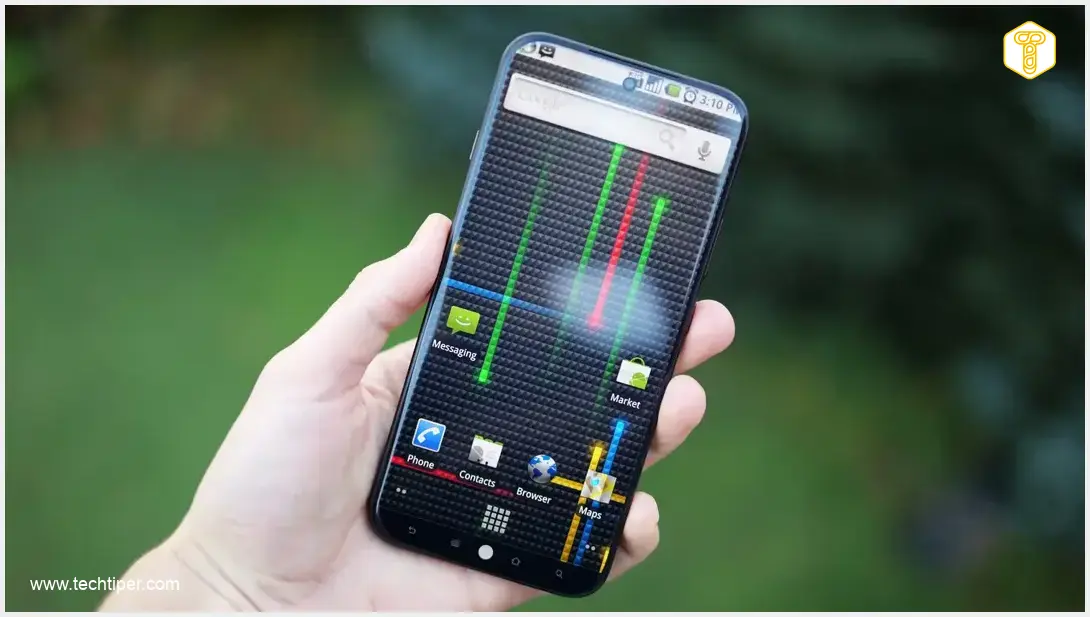
Each emulated version is meticulously based on the authentic system image of the device with which it originally debuted. For instance, the Android 2.1 Eclair emulation faithfully replicates the Nexus One experience, complete with its characteristic live wallpapers, the distinctive three-dimensional application drawer, and Google applications from 2010.
The Dawn of Android Easter Eggs
An interesting historical note highlighted by the emulator is the introduction of Android’s famous “Easter eggs.” It wasn’t until the subsequent edition, Android 2.3 Gingerbread, that Google incorporated these hidden features. Typically, an Easter egg would appear after repeatedly tapping the version number in the phone’s “About” menu, a tradition that continues with varying implementations in modern Android versions.
How to Experience Vintage Android on Your Smartphone
The best way to enjoy this nostalgic trip is directly on your smartphone’s screen. Here’s a simple guide:
- Access the Project: Open the project’s website in your mobile browser.
- Select Your System: Browse the list and choose the Android version you wish to explore.
- Launch and Immerse: After clicking the launch button, it’s highly recommended to activate full-screen mode. This hides your modern phone’s interface and browser toolbars, providing a truly immersive experience.
While the initial loading of the emulator might take a few dozen seconds, the performance on contemporary flagship smartphones is remarkably smooth, with no noticeable lag. This ensures a seamless and enjoyable journey back to Android’s roots.
Frequently Asked Questions (FAQ)
The Android Time Machine is a browser-based emulator developed by szabolevi98 that allows users to experience various historical versions of the Android operating system directly on their web browser, typically on a smartphone.
The emulator offers eight different Android versions, ranging from Android 2.1 Eclair (on Nexus One) to Android 7.1.2 Nougat (on Nexus 6P). Other available versions include 2.3.6 Gingerbread, 4.0.4 Ice Cream Sandwich, 4.3 Jelly Bean, 4.4.4 KitKat, 5.1.1 Lollipop, and 6.0.1 Marshmallow.

Each emulated Android version is based on the authentic system image of the device it originally debuted on. This ensures a highly genuine experience, replicating features like original live wallpapers, application drawers, and Google apps from that era.
Simply open the project’s website in your mobile browser, select the desired Android version from the list, and then click the launch button. For the best experience, activate full-screen mode to hide your browser and phone interface, providing full immersion.
Source: 9to5google
Opening photo: Krzysztof Wilamowski / Android dot com pl
About Post Author
