

Contents
Debunking the USB Insertion Speed Myth: Does How You Plug In Your Drive Affect Performance?
Take a moment to consider how you typically insert a USB drive or external disk into a USB port. Do you do it quickly, or more slowly and deliberately? According to a persistent internet myth, the speed of insertion actually matters, directly impacting the data transfer rates achieved with that memory device. But what’s the real story?
The Persistent USB Insertion Myth
This popular internet myth suggests that connecting USB flash drives more quickly and efficiently through a USB port ensures they utilize their full potential. Conversely, a slower insertion of the device is rumored to prevent the USB 3.0 mode from engaging, causing the gadget to operate solely in the older USB 2.0 standard.
Many users have wondered if there’s any truth to this claim, especially given the noticeable performance difference between USB 2.0 and USB 3.0. USB 3.0 (also known as USB 3.1 Gen 1 or USB 3.2 Gen 1) offers SuperSpeed data transfer rates of up to 5 Gbps, a significant leap from USB 2.0’s High-Speed rate of 480 Mbps.
Our Investigation: Testing the Theory
To put this myth to the test, our team used a laptop equipped with compatible USB 3.0 ports. We installed a popular free memory testing application, CrystalDiskMark version 9.0.3, to accurately measure read and write speeds. For our storage device, we selected an ADATA Elite SE880 portable SSD, known for its high-speed capabilities.
We conducted two main measurements: one where the drive was inserted deliberately slowly, and another where it was inserted quickly. The results were quite revealing:
- Quick Insertion:
- Write Speed: 463.81 MB/s
- Read Speed: 160 MB/s
- Slow Insertion:
- Write Speed: 42.39 MB/s
- Read Speed: 38.68 MB/s
As you can see, the difference is astronomical! But don’t worry, this isn’t due to magic or some obscure technical incantation. It’s a straightforward consequence of how USB 3.0 connections are designed.
The Science Behind the Speed Difference
The crucial factor here isn’t the speed at which you insert the device, but rather ensuring it’s fully and firmly seated in the port. One of the earliest mentions of this specific issue dates back to around 2013, when USB 3.0 cables and memory devices were relatively new technological advancements. An anonymous user on Microsoft forums raised this exact problem, reporting that their newly purchased USB drive consistently behaved like a USB 2.0 device.
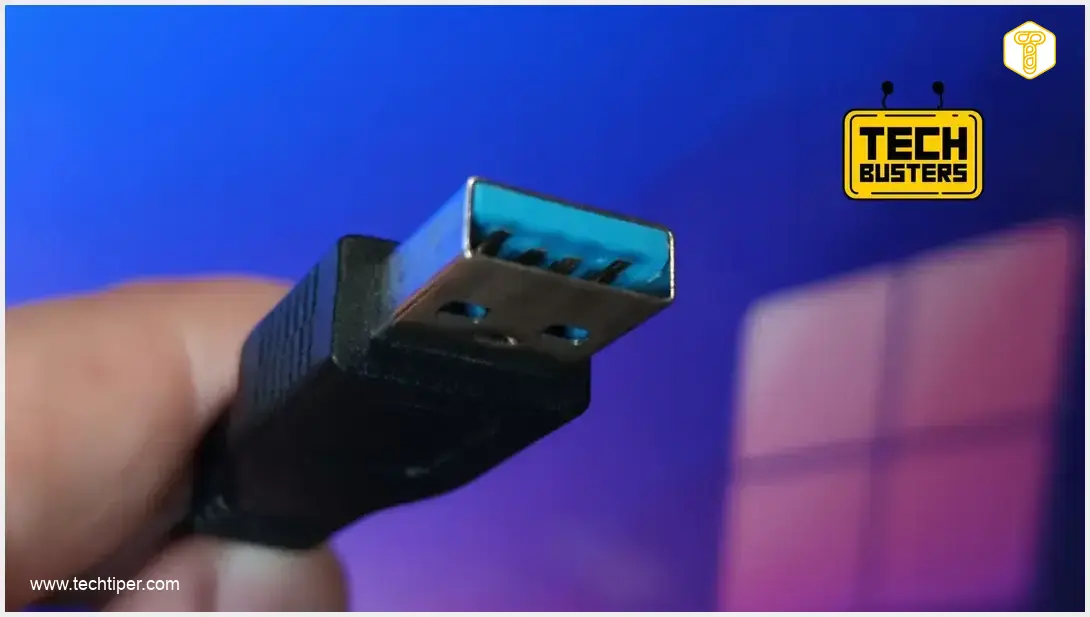
The explanation lies in the physical construction of USB 3.0 connectors. Unlike USB 2.0, which has four pins, USB 3.0 adds five additional pins that are responsible for the “SuperSpeed” data transfer. These extra pins are located further inside the connector, behind the standard USB 2.0 pins.
If a USB port is particularly tight, or if the drive isn’t pushed in all the way, these critical USB 3.0 pins may not make proper contact with the corresponding pins inside the port. When this happens, the device automatically falls back to the USB 2.0 standard, significantly limiting its potential transfer speeds. So, it’s not about the speed of insertion, but the completeness of the connection.

Therefore, remember this simple rule: always ensure your external drives and USB flash drives are firmly and completely seated when connecting them to your laptop or desktop computer. A secure connection is key to unlocking their full performance potential.
Understanding how technology works, from USB connections to digital security, helps us navigate the modern world. For insights into protecting your valuable assets, read our article on Keyless Car Theft Protection: Does Aluminum Foil Really Work?.
Just as a proper USB connection ensures optimal data transfer, optimizing your operating system can significantly boost overall performance. For more ways to fine-tune your computer, check out our guide on Windows 11 Debloat, Performance, and Privacy Guide.
Frequently Asked Questions (FAQ)
The primary difference is data transfer speed. USB 2.0 offers “High-Speed” transfers up to 480 Mbps, while USB 3.0 (and its successors) provides “SuperSpeed” transfers up to 5 Gbps, which is more than ten times faster. This speed increase is due to additional data lines and pins in the USB 3.0 connector and cables.
To ensure your USB 3.0 device operates at its maximum speed, always make sure it is firmly and completely inserted into a compatible USB 3.0 port. Check that the port and connector are free of debris, and if possible, use a blue-colored USB 3.0 port (which is a common indicator) on your computer.
Yes, several factors can affect USB transfer speeds. These include the quality and length of the USB cable, the performance of the connected storage device (e.g., a slow hard drive vs. a fast SSD), the speed of the computer’s internal drive, the number of devices sharing the same USB controller, and the type/size of files being transferred (many small files transfer slower than one large file of the same total size).
Source: Own elaboration
Opening photo: Krzysztof Rojek
About Post Author
