
Yale Linus L2 Lite Smart Lock Review
-
Installation Ease
-
Keyless Convenience
-
Access & Control Options
-
Security & Reliability
-
Smart Home Integration
-
Battery Management
Smart Entry, Simplified Security
The Yale Linus L2 Lite offers a seamless transition to a smart, keyless lifestyle, integrating advanced access features with robust backup options. Its easy installation and diverse control methods make daily entry effortless, though the absence of DoorSense and the separate Wi-Fi bridge are points to consider for a complete smart home experience.
Advantages
- Transforms existing lock into a smart lock
- Keyless entry via smartphone, Auto-Unlock, and KeySense button
- Easy installation and cylinder replacement
- Flexible digital guest access (permanent, recurring, temporary)
- Multiple backup entry methods (physical key, manual knob)
- Supports Matter over Thread for smart home ecosystem integration
- Expandable with optional accessories (Wi-Fi bridge, keypads)
- App notifications for low battery
- No need to replace the entire door or drill new holes
Disadvantages
- Does not include DoorSense functionality (cannot detect if door is closed)
- Yale Connect Wi-Fi Bridge for remote access is a separate purchase
- Cylinder replacement may be necessary and is a separate purchase
- No integrated keypad or fingerprint scanner (external accessories needed)
- Relies on smartphone/Bluetooth for primary smart features (without bridge)
- Requires cylinder with “emergency function” for key override
- Cannot fix issues with stiff or misaligned existing door locks
Contents
Yale Linus L2 Lite: I Replaced My Cylinder, Now I Open My Door with My Phone
Keys have a mischievous habit: they’re always right there when you don’t need them. But try standing at your door, juggling groceries in one hand and a child in the other, and suddenly, the right pocket vanishes. At that moment, you have two choices: either put everything down on the doormat and start a frantic search, or have your lock unlock itself before you even think about your keys.
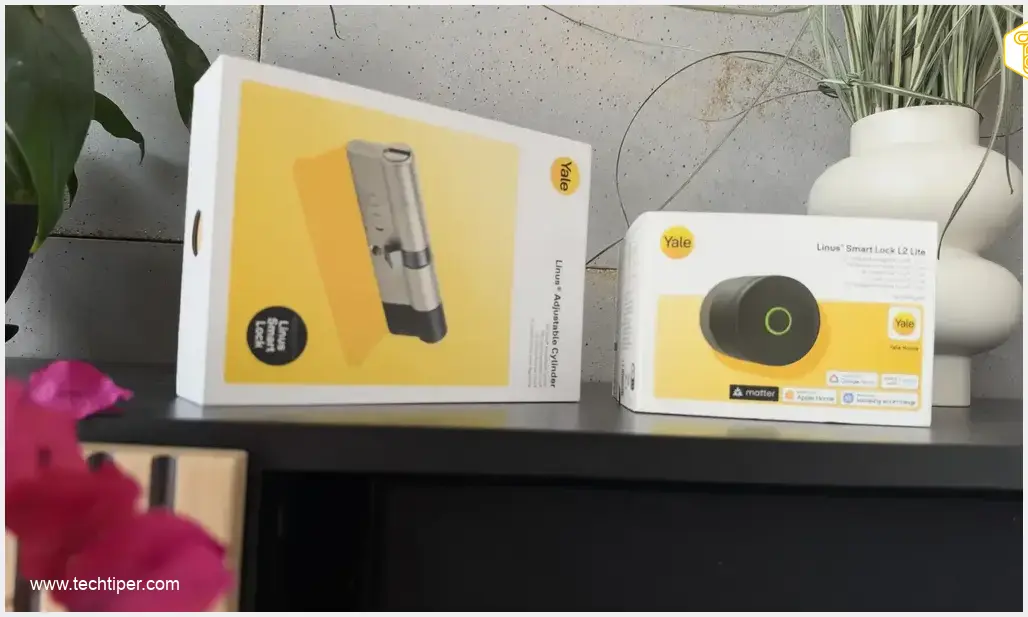
This ingenious idea is precisely what the Yale Linus L2 Lite smart lock brings to life. Designed to be installed on the inside of your existing door lock, it automates the locking and unlocking mechanism. Its motor turns the deadbolt for you, whether commanded from your smartphone, by pressing a button on its casing, or automatically as you approach home.
Before your door can magically unlock itself, you’ll need a screwdriver. For my setup, I opted for a dedicated Yale euro profile cylinder without hesitation. It’s crucial to understand that this cylinder is a separate purchase and not included with the Linus L2 Lite smart lock. You might not even need to replace your existing cylinder. However, since I was already working on the door, I preferred having a complete system from a single manufacturer. The entire cylinder replacement took me about 10 minutes, and I’m confident I could do it in just 3 minutes if I had to do it again.
Understanding Your Door Hardware
It’s easy to confuse a few key terms when it comes to door hardware, so let’s clarify:
- Cylinder (or Lock Cylinder): This is the metal component into which you insert your key.
- Lock Mechanism: This is the larger internal mechanism hidden within the door slab that the cylinder operates.
- Yale Linus L2 Lite: This device adds a motor and smart electronics to your existing setup. Essentially, it takes over the job your hand used to do when turning the key. You won’t need to replace your entire door or drill new holes. The L2 Lite is installed on the interior side of your door. The exterior retains the standard key entry, provided your chosen cylinder allows for it. This device is not designed for outdoor exposure, so never install it where it can be exposed to rain or elements.
Before You Buy: Compatibility Check
Before purchasing any components, it’s essential to verify compatibility.
- Yale Compatibility Tool: Use Yale’s online compatibility tool to check your specific door and cylinder. For standard euro profile cylinders, two key aspects are crucial:
- Internal Projection: How far the cylinder protrudes from the inside of the door.
- Emergency Function (or “Secure Clutch”): This feature allows you to unlock the door from the outside with a key, even if another key is inserted on the inside. For the Yale Linus L2 Lite installation, the cylinder needs to protrude by at least 3 mm on the interior side.
- Door Operation Test: Perform a quick, 30-second test:
- Insert your regular key and turn it with the door open, then with the door closed. The lock should operate smoothly without any resistance.
- If you need to pull the door handle towards you for the deadbolt to align with the strike plate, your door likely needs adjustment. A smart lock motor cannot fix a stiff or misaligned lock; it will simply struggle, reducing its lifespan and efficiency.
Why I Chose a Yale Cylinder
You are not obliged to replace your existing cylinder if it’s compatible with the Linus L2 Lite. My old cylinder was theoretically suitable, but it lacked the crucial “emergency function” mentioned earlier – the ability to open the door from the outside with a key when another key is inserted on the inside. Had I kept it, I would have been solely reliant on my smartphone for entry, and I value flexibility.
I wanted the option to use both a traditional key and my smartphone as needed. This led me to switch to a dedicated Yale adjustable euro profile cylinder. These Yale cylinders offer a convenient feature: you can adjust the length of both sides using included spacer elements. This is important because cylinders are rarely symmetrical; the outer part might be longer or shorter than the inner part. Your old, well-fitting cylinder will serve as a good template. When assembling the new one, remember to account for the required internal protrusion where the smart lock drive will be mounted.

Preparation Tip: Before you start, lay out the new cylinder with all its parts, a screwdriver, and any included tools on a clean, clear surface. Keep small components in one designated spot. Trust me, searching for a tiny screw under a cabinet can take longer than the entire replacement process!
Cylinder Replacement: Step-by-Step Guide
1. Open the Door and Remove the Retaining Screw
Work with the door open. Secure it to prevent it from accidentally closing midway through the process. On the side edge of the door slab, you’ll find a long screw that holds the cylinder in place. You only need to remove this one screw; do not tamper with the rest of the lock mechanism.
(Note: While I found it easier to remove the door handle and its housing for better access, this step is generally not necessary for most installations.)
2. Remove the Old Cylinder and Measure It
Insert your key into the old cylinder and turn it slightly until the cam (the small central piece that rotates to engage the lock mechanism) aligns with the cylinder body. Once in the correct position, the cylinder should slide out easily from the door. If it resists, do not force it; simply adjust the key’s position slightly until it glides out.
Carefully measure the length of both the outer and inner sections of the cylinder, taking your measurements from the center of the retaining screw hole. Make a note of which side faced outwards to avoid confusion when assembling your new cylinder.
3. Assemble Your New Yale Cylinder
Using the instructions provided with your Yale cylinder, select the appropriate spacer elements to match your door’s thickness. There isn’t a one-size-fits-all set of spacers; the correct combination depends on your specific door. The kit also includes a specially cut internal key designed to work with the Linus smart lock drive. Adjust its length according to the instructions as well.
4. Install the New Cylinder and Test
Slide the newly assembled cylinder into the door, aligning the screw hole, and then reinsert the retaining screw. Tighten it securely, but do not overtighten. First, test the key’s rotation and the deadbolt’s operation with the door open. Once confirmed, close the door (ensuring you have the key in hand and can easily access the interior). Test locking and unlocking from both the inside and outside. This step must function flawlessly before you proceed with any electronics. Otherwise, if an issue arises later, you won’t know if the problem lies with the smart lock system or the door itself.
Installing the Yale Linus L2 Lite Smart Lock
With your new cylinder installed, it’s time to attach the Linus L2 Lite.
- Mounting Plate: From the inside of your door, secure the L2 Lite mounting plate onto the prepared cylinder using the included Allen key. Ensure it’s stable and that the special internal key is correctly positioned.
- Attach the Main Unit: Hook the main body of the L2 Lite onto the mounting plate, press it firmly, and then tighten the screw at the base. Gently wiggle the unit; it should feel secure and not wobble. (Yale provides a specific installation video for the L2 Lite with an adjustable cylinder, which can be helpful as the attachment method may vary slightly depending on your cylinder type. I followed the instructions included in the Yale kit.)
- Power Up: The device is powered by three CR123A batteries. Access the battery compartment by releasing the side button and removing the cover. You’ll also find a QR code here, which you’ll need to scan shortly in the app.
- Manual Test: Before involving your smartphone, manually turn the knob on the L2 Lite. The lock should engage and disengage freely. Confirm everything is securely mounted and operating correctly.
Setting Up with the Yale Home App
- Download and Account Setup: Download the Yale Home app from your device’s app store (available for Android and iPhone). Create a new account or log in to an existing one.
- Pairing: Enable Bluetooth on your phone. In the app, select “Add New Device” and scan the QR code located under the L2 Lite’s battery cover.
- Configuration: Assign the lock to your “home” and follow the on-screen wizard. Give your lock a descriptive name, like “Front Door,” as model numbers become less useful when you have multiple devices. For tips on managing Bluetooth home security devices, including changing device names, see our guide on Bluetooth home security.
- Calibration: During calibration, the smart lock learns the fully locked and unlocked positions of your specific door. It’s crucial that the lock is already installed on the door during this step; simply follow the prompts on your screen.
- Post-Setup Check: After setup, test all three control methods: the Yale Home app, the physical button on the lock, and the manual knob. Verify that the lock’s status displayed in the app accurately reflects the deadbolt’s position. If there’s a firmware update available, perform it with your phone close to the lock.
Understanding the Yale Home App Display
Within the Yale Home app, you can select your lock and toggle its locked/unlocked state with a single tap. When you’re near the door, your phone communicates directly with the lock via Bluetooth, requiring no additional bridge device.
Important Note: DoorSense Functionality
It’s vital to understand a key limitation: the Linus L2 Lite does not support DoorSense, Yale’s door position sensor. This means the lock knows the deadbolt’s position (locked or unlocked) but doesn’t know if the door itself is actually closed. The deadbolt can extend even if the door is ajar. Therefore, a “locked” notification doesn’t guarantee your door is fully shut. Always ensure the door is closed, especially if you enable automatic locking features.
Key Features of Yale Linus L2 Lite
KeySense: Convenient Button Control
The center of the L2 Lite’s casing features the KeySense button. A short press will either lock or unlock the door, which is incredibly handy if someone rings the doorbell and your phone isn’t immediately accessible. The manual knob also remains fully functional.
A longer press of the KeySense button activates delayed locking. This allows you to exit, close the door, and after a preset time, the smart lock will automatically engage the deadbolt. You can customize this delay to suit your needs; I found the shortest setting (10 seconds) to be ideal.
This delayed locking feature is disabled by default. You can activate and configure it within the Yale Home app: navigate to your lock settings, find the KeySense section, set your desired delay time, and decide whether a short press of the button should perform any action at all.
Auto-Lock: Automatic Security
If you prefer your door to automatically relock after a period, enable the Auto-Lock feature. As the owner, within Bluetooth range, go to your lock’s settings in the Yale Home app, select “Auto-Lock,” choose your desired delay time, and save.
The distinction between Auto-Lock and KeySense is straightforward: KeySense’s delayed locking is manually triggered by you pressing the button. Auto-Lock, however, initiates a countdown automatically after every unlock event. Since the L2 Lite only relies on a timer (no DoorSense), ensure your door is physically closed. When you’re bringing in groceries or chatting with a neighbor at the threshold, remember that the timer is ticking!
Auto-Unlock: Keyless and Hands-Free Entry
While smart locks replace physical keys with your phone screen, Auto-Unlock takes it a step further, allowing you to keep both in your pocket. The Yale Home app distinguishes between “Home” and “Away” states. It first detects when you’ve left a geofenced area, typically around 200 meters (about 650 feet) from your home. When you return and your phone is within close Bluetooth range of the lock, it automatically unlocks. The 200-meter range is primarily for detecting your departure; your door won’t unlock when you’re still down the street.
To enable Auto-Unlock, go to your lock’s settings and follow the location configuration steps. Your phone must have Bluetooth, Wi-Fi, and appropriate location permissions enabled for this feature to function correctly.
Guest Access: Share Keys Digitally
Traditionally, lending keys involves coordinating handoffs and then wondering where your spare set has gone. With Yale Home, you simply send an invitation. Anyone you grant access to will need their own Yale Home account and the app on their smartphone.
In the “Access” section of the app, you can add a new person, enter their details, and define their permissions. It’s best to use the phone number associated with their Yale Home account. As the owner, you maintain full control over settings and user management. Guests operate within the boundaries you set: they won’t have administrative privileges, remote control capabilities (without a bridge), or Auto-Unlock access.
Access can be granted in three forms:
- Permanent: Ideal for household members.
- Recurring: For individuals who need access on specific days and times (e.g., a cleaner or dog walker).
- Temporary: Perfect for short-term needs, like when someone needs to water your plants while you’re away.
You configure these options within the individual’s access schedule: select the type, define dates or times, and save. Remember, temporary access grants a time window, not a single-use key.
Remote Access: The Yale Connect Wi-Fi Bridge
The Linus L2 Lite does not have built-in Wi-Fi. If you wish to control your lock from outside your home – whether from work or on vacation – you’ll need to purchase the Yale Connect Wi-Fi Bridge separately. This bridge acts as a translator: it communicates with your smart lock via Bluetooth and connects to your home’s Wi-Fi network.
Plug the bridge into an electrical outlet where it has good signal strength to both your lock and your Wi-Fi router. Add it through the Yale Home app, assign it to your lock, and connect it to your 2.4 GHz Wi-Fi network. Then, test the connection by verifying control when you are outside of Bluetooth range.
The Connect Wi-Fi Bridge is what enables you to grant access to someone waiting at your door when you’re across town. It also relays real-time updates and activity history to your Yale Home app. You don’t need it for direct smartphone control when you’re at the door, but if remote access is a priority, factor the bridge into your budget from the start.
Once the bridge is configured, you can also set up schedules for automatic locking and unlocking at specific times.
Matter Integration: Unifying Your Smart Home
The L2 Lite supports Matter over Thread, allowing you to integrate it into broader smart home ecosystems like Apple Home, Google Home, Amazon Alexa, or Samsung SmartThings. For this, you’ll need a Matter controller and a Thread border router (which can often be combined into a single device). A standard Wi-Fi router alone won’t suffice. For more tips on expanding your smart home, consider exploring affordable smart home actions.
Why another connection method? If you manage your entire home through a single application, your smart lock can join your lights, sensors, and other devices there. This enables you to incorporate it into custom scenes and automations, with the scope of these automations depending on your chosen platform.
Configuration begins in the Yale Home app: navigate to your lock settings, find the “Matter” section (sometimes listed under “External Platforms”), enable the integration, and enter the provided code into your smart home system’s app. The Yale Home app will still be used for initial setup and advanced lock-specific settings.
It’s easy to confuse functionalities here. Remote control via Matter and full remote access through Yale Home are distinct. For instance, an Apple Home hub will allow you to open the lock from the Home app, but it won’t replace the Yale Connect Wi-Fi Bridge for sending detailed history to the Yale Home app. Additionally, Apple Home compatibility does not imply support for Apple Home Key in your Wallet.
Activity History and Smart Notifications
The Yale Home app provides a comprehensive activity history. You can see when the lock was used, and for operations performed via assigned user accounts, you’ll also see who used it. However, if the lock is operated manually with a physical key or its internal knob, the system cannot differentiate between users like a family member or a neighbor. The history primarily records the lock’s movements.
In the notification settings, you can create smart alerts for specific events and define when you want to receive them. This prevents your phone from constantly pinging every time a household member operates the lock.
PIN Codes and Fingerprint Access: External Keypads
Not every household member may prefer using a smartphone for entry. You can expand functionality by adding external accessories:
- Yale Smart Keypad: Provides entry via PIN codes.
- Yale Smart Keypad 2: Offers both PIN code entry and a fingerprint reader.
PIN codes are configured after pairing the keypad with your smart lock. The L2 Lite itself does not feature an integrated keypad or fingerprint scanner.
Another accessory is the Yale Dot, an NFC tag that, when tapped with an authorized smartphone, quickly triggers lock actions through the app. It’s a shortcut for app control, not a standalone fob that anyone can use to open the door. All these additional accessories are sold separately, allowing you to customize your setup to match your household’s preferences.
Battery Life and Backup Plans
Yale estimates up to six months of battery life from three CR123A batteries. Actual longevity will vary based on usage frequency, connectivity, and how smoothly your door lock operates. High-traffic doors or stiff locks will naturally require more frequent battery changes.
The Yale Home app will notify you when battery levels are low. To replace them, simply remove the cover, swap out all three batteries, and reattach the cover. After power restoration, the lock might initiate a recalibration process, so observe it for a moment. If the low battery warning persists, Yale suggests cycling the lock (locking and unlocking via the app) three times to refresh its status.
A dead phone battery isn’t a reason to call a locksmith. From the outside, you still have your physical key (assuming you have a compatible cylinder), and from the inside, there’s the manual knob. Always keep a spare physical key accessible. While a keypad can provide entry if your phone dies, it won’t operate the lock if the batteries within the smart lock itself are depleted.
A home internet outage will disable remote functionalities. However, as the owner, you can still unlock the door via Bluetooth when you’re nearby. As you can see, there are multiple layers of access and backup options. The entire system is designed not to lock you out of your home if one component fails. I always carry my standard keys in my bag, though I rarely use them, preferring the convenience of my smartphone. But knowing I have a reliable backup is reassuring.
Troubleshooting Common Issues
Encountering a problem? Start with these basic troubleshooting steps:
- Lock Motor Jamming: Manually turn the cylinder with a key and check if your door has sagged or is misaligned.
- Phone Not Connecting: Move closer to the lock, ensure Bluetooth is enabled on your phone, and check the lock’s batteries.
- Remote Control Not Working: Verify that your Yale Connect Wi-Fi Bridge has power and a stable internet connection.
- Incorrect Status in App: If the app shows the wrong lock state, go to your lock’s settings and perform a recalibration while at the door, following the on-screen prompts.
- Auto-Unlock Issues: Revisit your phone’s location permissions and ensure background app refresh is enabled for Yale Home.
A factory reset should be considered a last resort, as it will erase all your configurations.
Conclusion: Your Keys Can Stay in Your Pocket
Remember that frustrating scenario at the door – groceries in one hand, child in the other, and your keys seemingly vanished? After installing the Yale Linus L2 Lite, that experience becomes a distant memory. Your door can unlock before you even reach for anything. If Auto-Unlock isn’t convenient at a particular moment, you still have the KeySense button or a quick tap on your phone. Need someone to water your plants while you’re away? Simply send them digital access, no key exchange necessary. You can always add the Yale Connect Wi-Fi Bridge for remote control and a Smart Keypad for PIN entry later, as your needs evolve. The final step is to choose the control methods that best suit your household and enjoy the seamless convenience during your daily comings and goings.
Frequently Asked Questions (FAQ)
The Yale Linus L2 Lite transforms your existing lock into a smart lock, offering keyless entry, remote access (with a bridge), automated locking/unlocking, and digital key sharing, eliminating the need for physical keys and enhancing convenience and security.
No, the Yale Linus L2 Lite is designed to attach to your existing euro profile cylinder on the inside of your door. You generally only need to replace the cylinder itself if your current one isn’t compatible or lacks necessary features like an emergency function.
The Yale Linus L2 Lite does not have a DoorSense sensor, meaning it knows the position of the deadbolt (locked/unlocked) but cannot detect if the door itself is physically closed. Always ensure your door is shut, especially when using auto-locking features.
If your smartphone battery dies, you can still use your physical key from the outside or the manual knob from the inside. If your home internet goes down, remote functions will be unavailable, but you can still control the lock via Bluetooth with your smartphone when nearby, or use physical keys/knob. The system offers multiple backup access methods.
Source: Kamil Marek
Opening photo: Kamil Marek
About Post Author
