
Contents
Xbox Cloud Gaming Introduces Smartphone and Wi-Fi Controller Options
Xbox Cloud Gaming is rolling out two new control options designed to tackle common gaming frustrations: not having a controller readily available and experiencing input lag. Microsoft is currently testing both using your smartphone as a controller for smart TVs and direct Wi-Fi connection for the Nano Controller. While these concepts might sound familiar, their integration into the Xbox ecosystem could prove significantly practical for many players.
Two Fresh Innovations for Xbox Cloud Gaming
Microsoft has recently launched a preview feature allowing users to utilize their smartphone as a controller when streaming Xbox games on select televisions. This innovative interface is accessed directly through a web browser, eliminating the need to download any additional applications. To enable it, simply navigate to your account settings within the Cloud Gaming service on your TV and activate the preview features.
This solution is already functional on a range of devices. For certain titles, Microsoft has even developed custom, optimized button layouts to enhance the gameplay experience. While not a revolutionary concept—other streaming services, like some video platforms, offer similar remote control options—it could genuinely save a gaming session when your primary controller is out of reach but your desire to play is strong. It’s particularly well-suited for turn-based games or slower-paced titles. For fast-paced, dynamic productions, a smartphone is unlikely to fully replace a traditional game controller.
Nano Controller on Wi-Fi: Tackling Latency Head-On
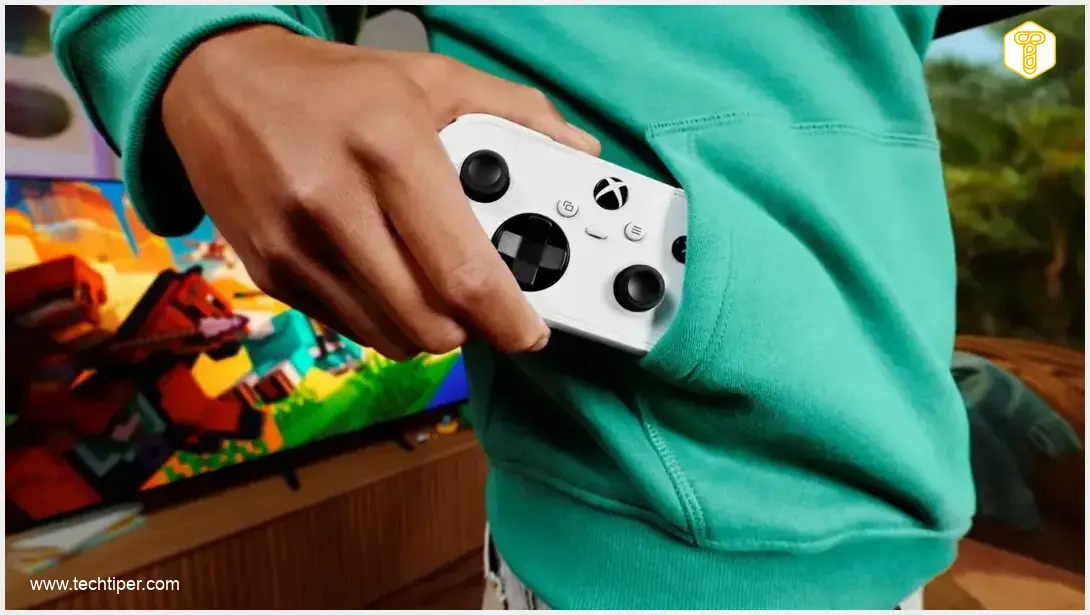
The second significant update pertains to the new Nano Controller. Gamers in select regions, such as the United States, can now connect this controller directly to Xbox Cloud Gaming via Wi-Fi, bypassing the standard Bluetooth connection. This direct connection aims to shorten the signal path and, consequently, reduce input latency, providing a more responsive gaming experience.
How to Set Up Wi-Fi Connectivity
Configuration for the Wi-Fi connection is managed through either the Xbox beta app on Android devices or the Xbox Accessories app on PC. For PC users, participation in the Xbox Insider program is required to access this feature. Once the controller is connected to your network, it will automatically link up when you log into the same account within the Xbox Cloud Gaming service.
Microsoft emphasizes that both of these functions are currently in a preview phase. This means availability, the list of supported televisions, and compatible games may be limited. The Wi-Fi connection for the Nano Controller is currently available for smart TVs and web browsers. While the core idea isn’t entirely new—Google notably used a similar solution with its Stadia service—its implementation within the Xbox ecosystem could genuinely benefit users who stream games on large screens and are sensitive to even minimal lag.
These advancements reflect Microsoft’s ongoing commitment to improving the cloud gaming experience. As the gaming landscape evolves, integrating seamless control options and minimizing latency becomes crucial. For enthusiasts looking at the broader picture of Xbox’s strategic moves, understanding efforts like Project Helix offers insight into how Xbox aims to unify its gaming platforms. Similarly, for those interested in portable streaming, comparisons with devices like the PlayStation Portal highlight the diverse approaches to remote play.
Frequently Asked Questions (FAQ)
You can use your smartphone as a controller by accessing the Xbox Cloud Gaming service on your smart TV’s web browser. Go to your account settings within the Cloud Gaming interface, activate the preview features, and follow the on-screen prompts to pair your phone. No separate app download is required.
Connecting the Nano Controller via Wi-Fi aims to reduce input latency. By bypassing Bluetooth, the signal path between the controller and the cloud gaming service is shortened, potentially leading to a more responsive and smoother gameplay experience, especially crucial for sensitive gamers.

No, both the smartphone-as-controller and Wi-Fi Nano Controller connectivity are currently in a preview phase. This means their availability is limited, and they may only be accessible on select devices, in specific regions, or to members of programs like Xbox Insider. Microsoft is gathering feedback before a wider rollout.
Using a smartphone as a controller is best suited for turn-based strategy games, puzzle games, or slower-paced adventure titles where precise, rapid inputs are less critical. For fast-paced action games or competitive multiplayer, a traditional physical controller will still offer a superior experience.
Source: Engadget, Internal Research. Opening photo: Xbox / Press Materials
About Post Author
