

Contents
Unlock Hidden Potential: Mastering the “0” Button on Your LG Magic Remote
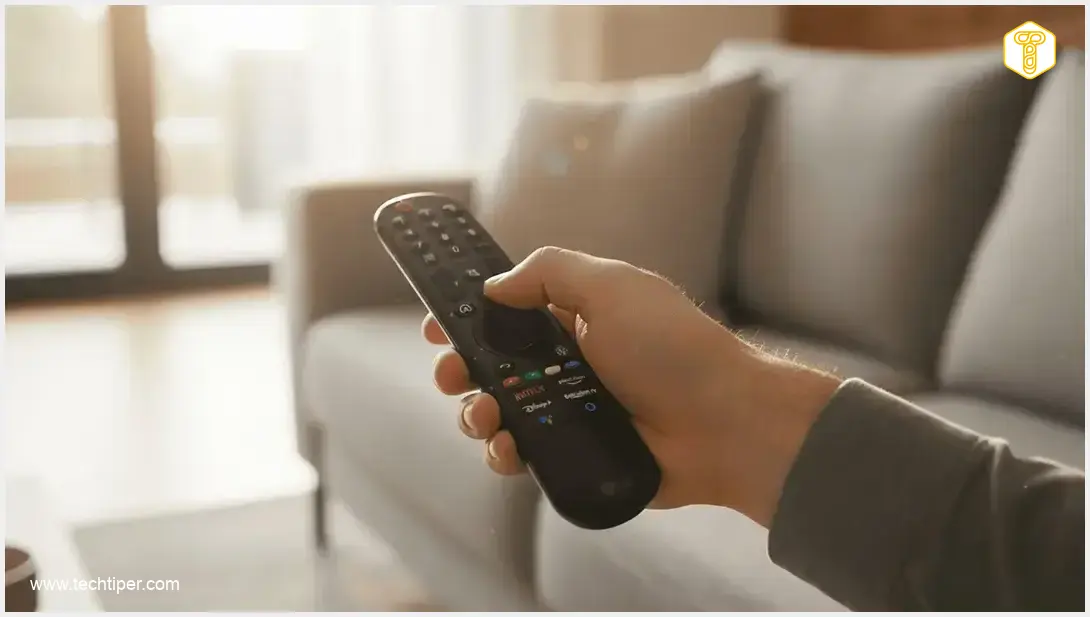
Your LG Magic Remote is packed with features designed to simplify your entertainment experience, but some of its most practical functions often go unnoticed. One such feature is tied to the humble “0” button, which can do far more than just change channels. On LG webOS TVs equipped with a compatible Magic Remote, a long press of this key opens the Quick Access panel—a personalized screen for managing your favorite shortcuts. Understanding this hidden gem can significantly streamline your TV navigation.
What is Quick Access and How Does It Work?
Quick Access is a powerful feature available on many LG TVs with a Magic Remote. Its primary purpose is to provide instant access to your most frequently used channels, applications, and even websites, bypassing the need to navigate through the webOS home screen, program lists, or app catalogs every time. This function is not a random shortcut but a deliberate design choice by LG for specific generations of their TVs and remotes.
Essentially, Quick Access allows you to assign specific items to the numeric buttons on your remote. Imagine launching Netflix, Prime Video, or YouTube with a single long press of a number button, rather than scrolling through menus. This is particularly useful for individuals who consistently use the same handful of services, saving valuable time and enhancing convenience. Instead of opening the Home screen and searching for your preferred streaming platform, you can program it to a number and access it instantly.
Enhance your LG TV experience further with the latest innovations. Explore LG’s new Smart TVs with AI, Micro OLED, and Gaming features.
Step-by-Step Guide: Setting Up Shortcuts with the “0” Button
Configuring your Quick Access shortcuts is straightforward:
- To Access the Quick Access Panel: Long-press the “0” button on your LG Magic Remote. A list of available shortcuts assigned to the numeric buttons should appear on your screen. From this panel, you can view current assignments, change them, or remove those you no longer need. Note that the menu layout or option names might vary slightly depending on your TV model and webOS version.
- To Assign a Shortcut Directly: Launch the specific application, channel, or website you wish to assign. Once it’s open, long-press the desired numeric button (e.g., “1” for Netflix, “2” for a specific channel). Your TV will prompt you to confirm the assignment. After this, a long press of that programmed number will launch the assigned item directly, eliminating the need to navigate through the Smart TV interface.
Not All LG Remotes Are Created Equal: Compatibility Matters
Before attempting to use the “0” button for Quick Access, it’s important to identify your LG remote model. The functionality can vary significantly:
- Classic Magic Remote (Older Generations): These remotes typically feature physical numeric buttons, including “0.” For these models, such as those accompanying 2020 and 2021 LG TVs, a long press of “0” directly opens the Quick Access editing menu.
- Newer, Simplified Remotes: LG is increasingly adopting more streamlined remote designs where the numeric keypad might be hidden behind an additional function button or replaced by an on-screen keypad. In these cases, the traditional Quick Access setup procedure using the physical “0” button may not apply.
- Remotes Without Numeric Buttons: If your remote lacks physical numeric buttons, the official LG instructions indicate that an on-screen keypad can usually be accessed via a “More Actions” button. However, the classic Quick Access menu, which allows custom application assignments to specific number buttons, is typically unavailable due to these hardware changes. This means you might not be able to assign custom app shortcuts in the same way as with older remotes.
Beyond the “0” Button: Other Handy Magic Remote Shortcuts
The “0” button isn’t the only key with hidden depths on your LG Magic Remote. Many other buttons offer extended functionality when long-pressed:
- “9” Button: On 2020 and 2021 models, holding down “9” often leads to Quick Help, providing immediate support and information.
- External Input Button: A long press of the external input button can launch the Home Dashboard, a convenient interface for managing signal sources and connected devices.
- Mute Button: Holding down the mute button can open the Accessibility menu, offering options for users with various needs.
- Home Button: Depending on your TV generation, a long press of the Home button might activate a screen zoom function or display a list of recently used applications.
- AI Button (on AI Magic Remotes): For newer AI Magic Remotes, voice recognition is activated by pressing and holding the AI button, speaking your command, and then releasing the button.
Consider improving your overall tech ecosystem. Explore the top 4 affordable Bluetooth gadgets to make your life easier, including smart home devices that complement your LG TV setup.
Frequently Asked Questions (FAQ)
The “0” button’s Quick Access functionality primarily works with LG Magic Remotes that have physical numeric keypads, typically found with older webOS TV generations (e.g., 2020-2021 models). Newer, simplified remotes or those without physical numbers may not support this specific feature, as Quick Access for custom numeric assignments is often tied to the physical buttons. Consult your TV’s manual or LG’s support website for your specific model’s remote compatibility.

Yes, generally you can assign a wide range of items. Quick Access is designed for convenient access to your most-used applications, TV channels, and even specific web pages. To assign, simply open the desired item on your TV and then long-press the numeric button you wish to program. The TV will confirm the assignment.
Don’t worry! If you accidentally delete a shortcut or wish to reassign a button, simply long-press the “0” button to open the Quick Access editing panel. From there, you can easily view all current assignments, remove existing ones, or create new shortcuts for any of the numeric buttons. This allows for flexible and ongoing customization of your remote.
Source: LG, YouTube, Reddit. Opening photo: LG / Press materials
About Post Author
